How to Install Joomla in cPanel using Softaculous? [STEP BY STEP]☑️
Today in this documentation we will learn how to install Joomla in cPanel using Softaculous. The quickest and simplest way to install Joomla! is with the Softaculous App Installer available in cPanel. Softaculous provides an easy, one-click installation that is the best choice for most website owners.
Video Tutorial– “How to Install Joomla in cPanel using Softaculous?”
Follow the steps to install Joomla in cPanel using Softaculous:
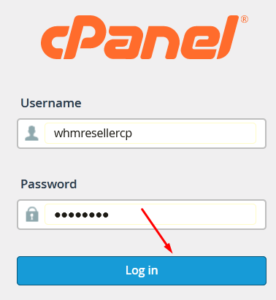
Step::1 Log into your cPanel account
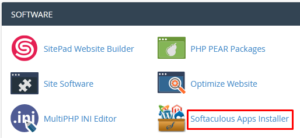
Step::2 Scroll down to the Software section and click Softaculous Apps Installer.
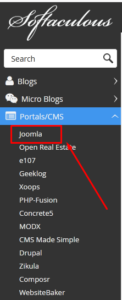
Step::3 Expand the Portals/CMS menu and click Joomla.
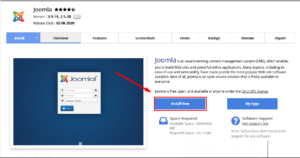
Step::4 On the Overview tab, click Install Now.
Also See:
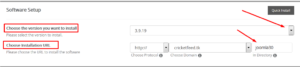
Step::5 In the Setup section, enter the following details:
In Directory – You can specify here the directory where you want to install Joomla. To install Joomla! at the root of your site, leave this blank.
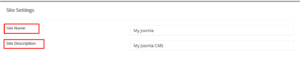
Site Name – Enter the name of your site.
Site Description – Enter a short description of your site.
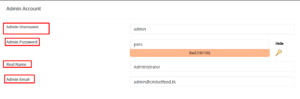
Admin Username – Enter a username for the admin user.
Admin Password – Enter a strong password for the admin username.
Real Name – Enter the admin user’s real name.
Admin Email – Enter the email address of the admin user.
Select Language – Select the correct language for the Joomla! back-end.

You can let Softaculous choose the database settings.
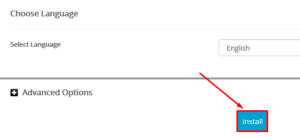
Step::6 When you’re finished entering settings, click Install.
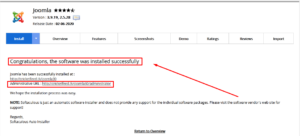
When the installation is complete you’ll see a success message and links to your Joomla! site and Joomla! administrator back-end.
Thanks for Reading this article !!! We hope this was helpful to you all.
For more information, kindly follow us on social media like Twitter and Facebook and for video tutorials, subscribe to our YouTube channel –https://youtube.com/redserverhost.com
Facebook Page– https://facebook.com/redserverhost
Twitter Page– https://twitter.com/redserverhost.com
If you have any suggestions or problems related to this tutorial, please let us know via the comment section below.
Tags: cheap linux hosting, buy linux hosting, cheap reseller hosting, buy reseller hosting, best reseller hosting, cheap web hosting, cheapest web hosting, cheapest reseller hosting, cheap reseller host, cheap linux host, cheapest linux hosting, best linux hosting, best web hosting